Install guide · 5 pictures · about 5 min
Install the hub on Windows
Your PC becomes the recorder. Three pictures, about five minutes.
You need
- A Windows 10 or 11 PC (64-bit)
- The PC on the same network as your cameras
- Your phone with the Glimpo app
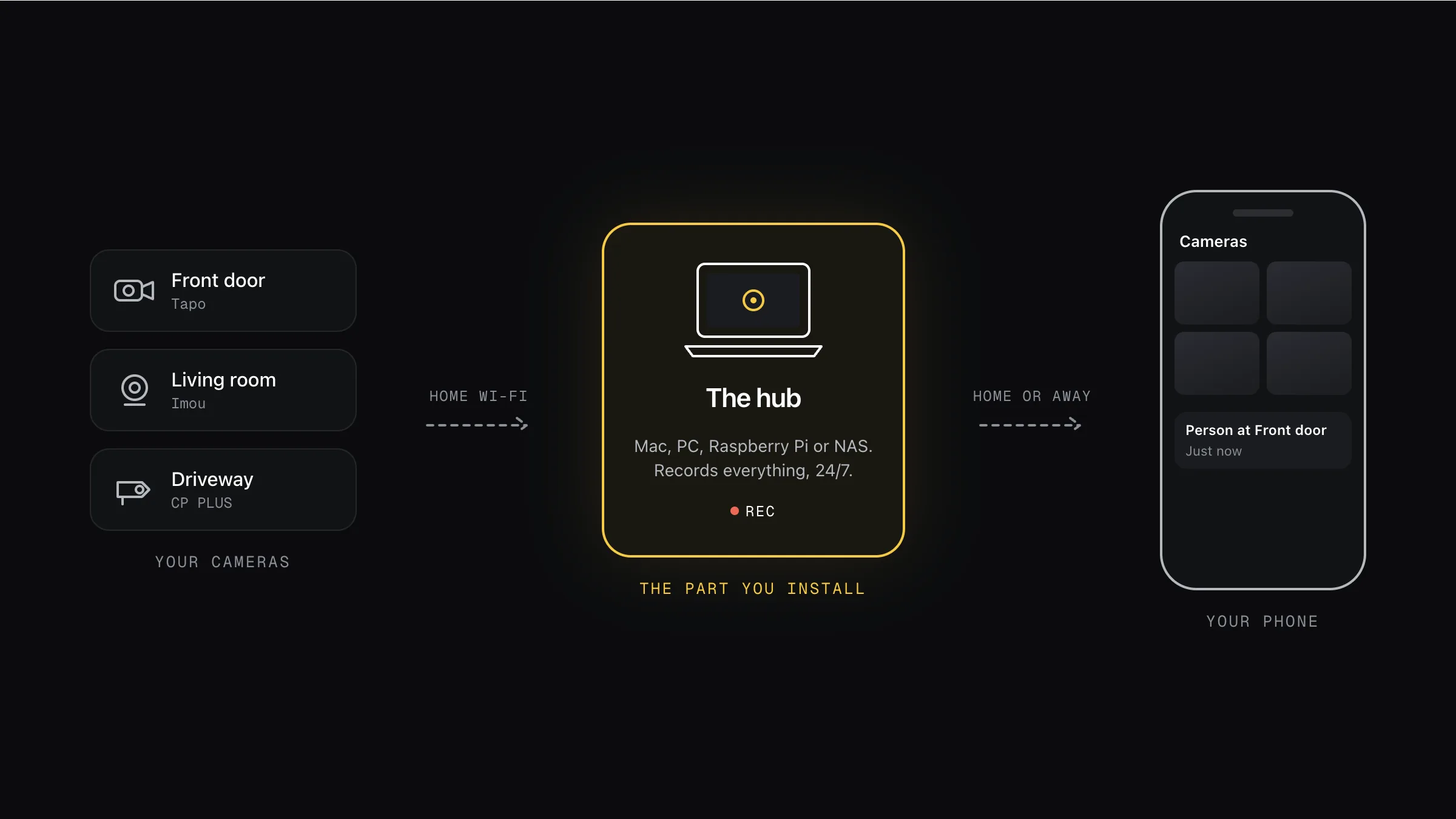
Your cameras → the hub you’re installing → your phone. Footage stays at home, or in your own cloud.
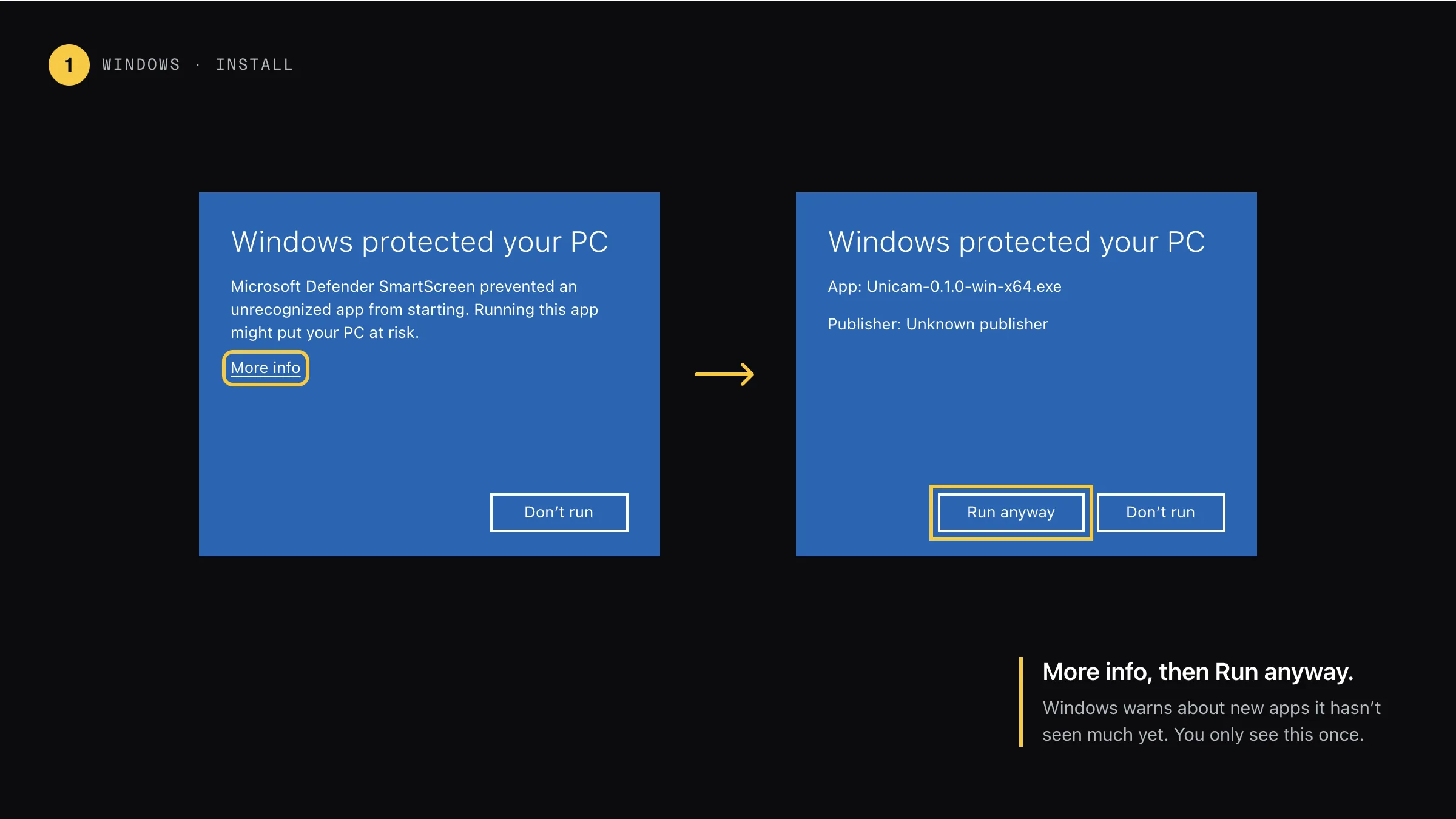
Step 1: Run the installer: More info, then Run anyway
Double-click the .exe you downloaded. Windows warns about apps it hasn’t seen much yet. Click More info, then Run anyway, then follow the installer (Next, Install, Finish).
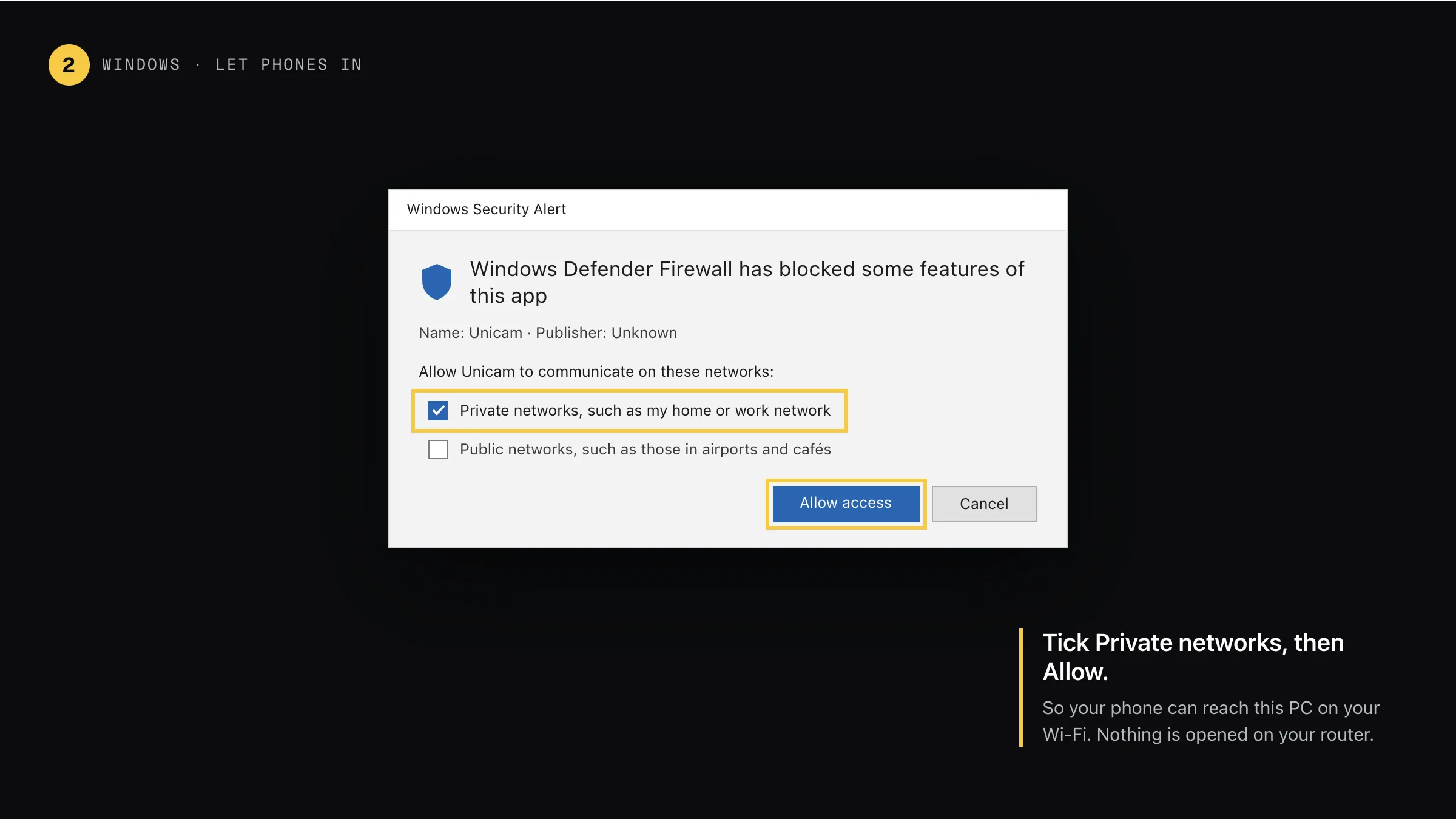
Step 2: Let your phone in: Private networks, Allow
If Windows Security asks, tick Private networks and click Allow access. That lets your phone reach this PC on your Wi-Fi. Nothing is opened on your router.
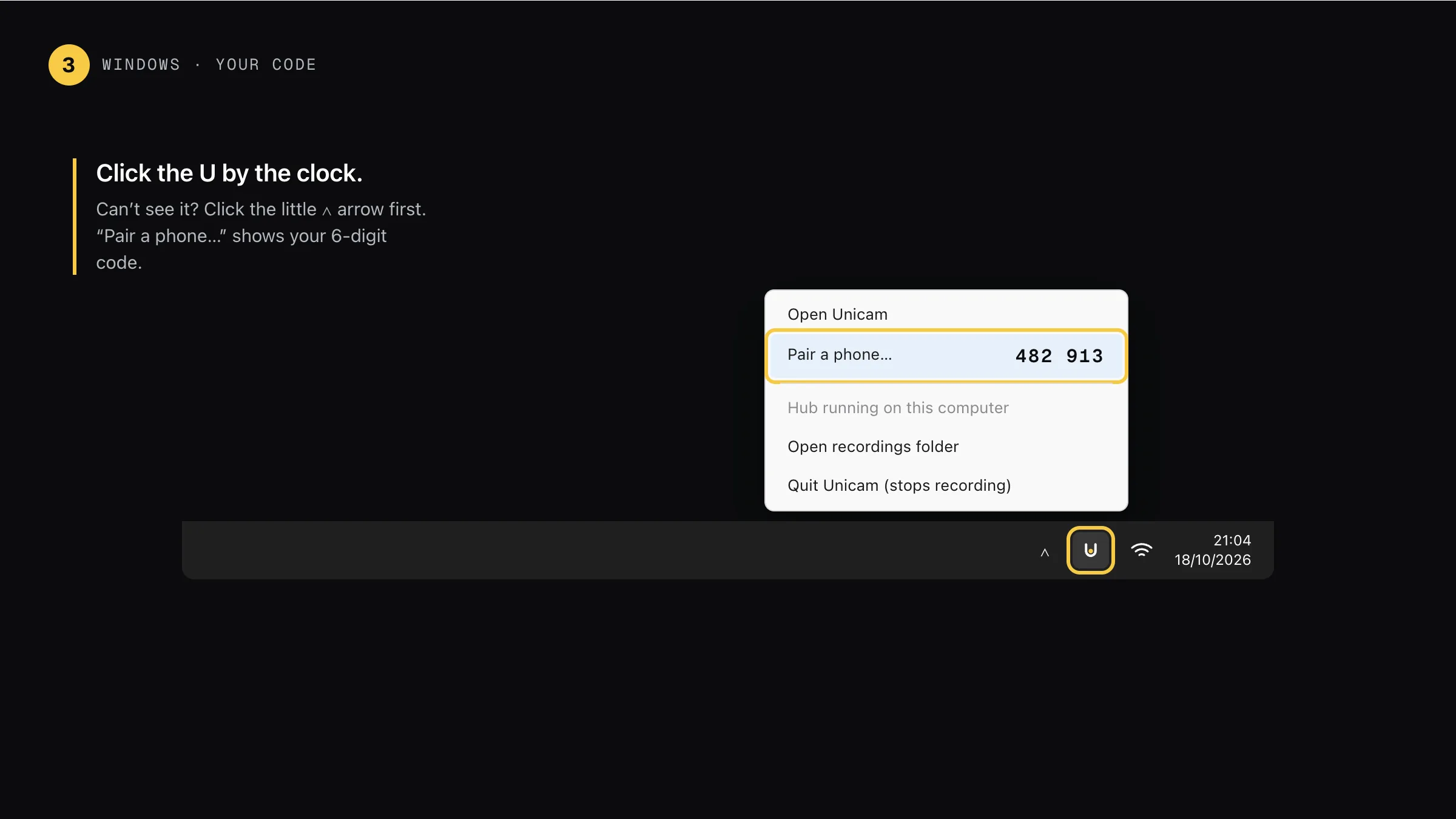
Step 3: Find your code by the clock
Click the U next to the clock. Can’t see it? Click the little ∧ arrow first. “Pair a phone…” shows your 6-digit code. Glimpo starts with Windows and records in the background.
Then pair your phone · same for every hub
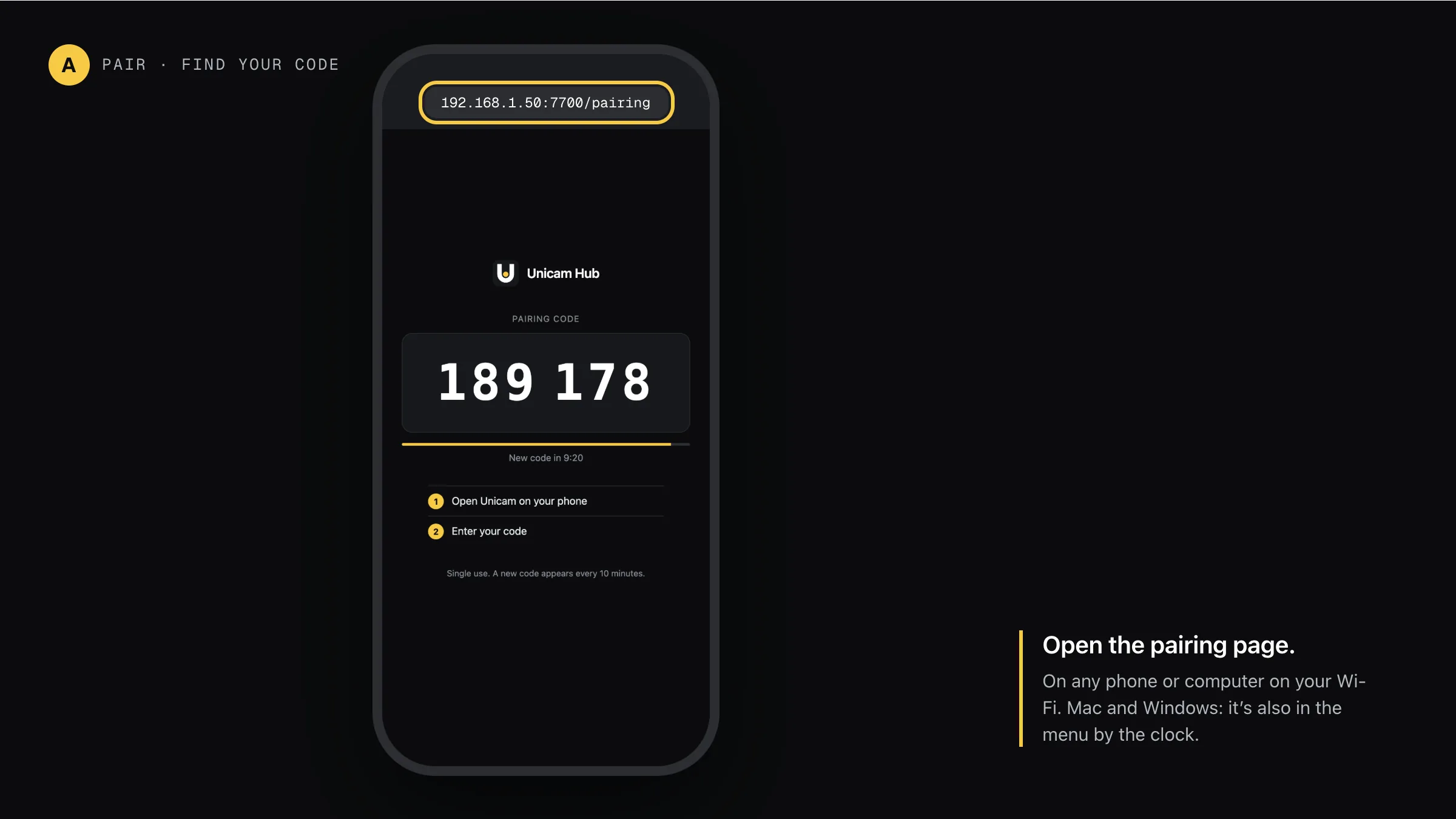
Step A: Open the pairing page
On any phone or computer on your Wi-Fi, open the hub’s address with /pairing on the end. The big number is your code. It changes every 10 minutes and works once.
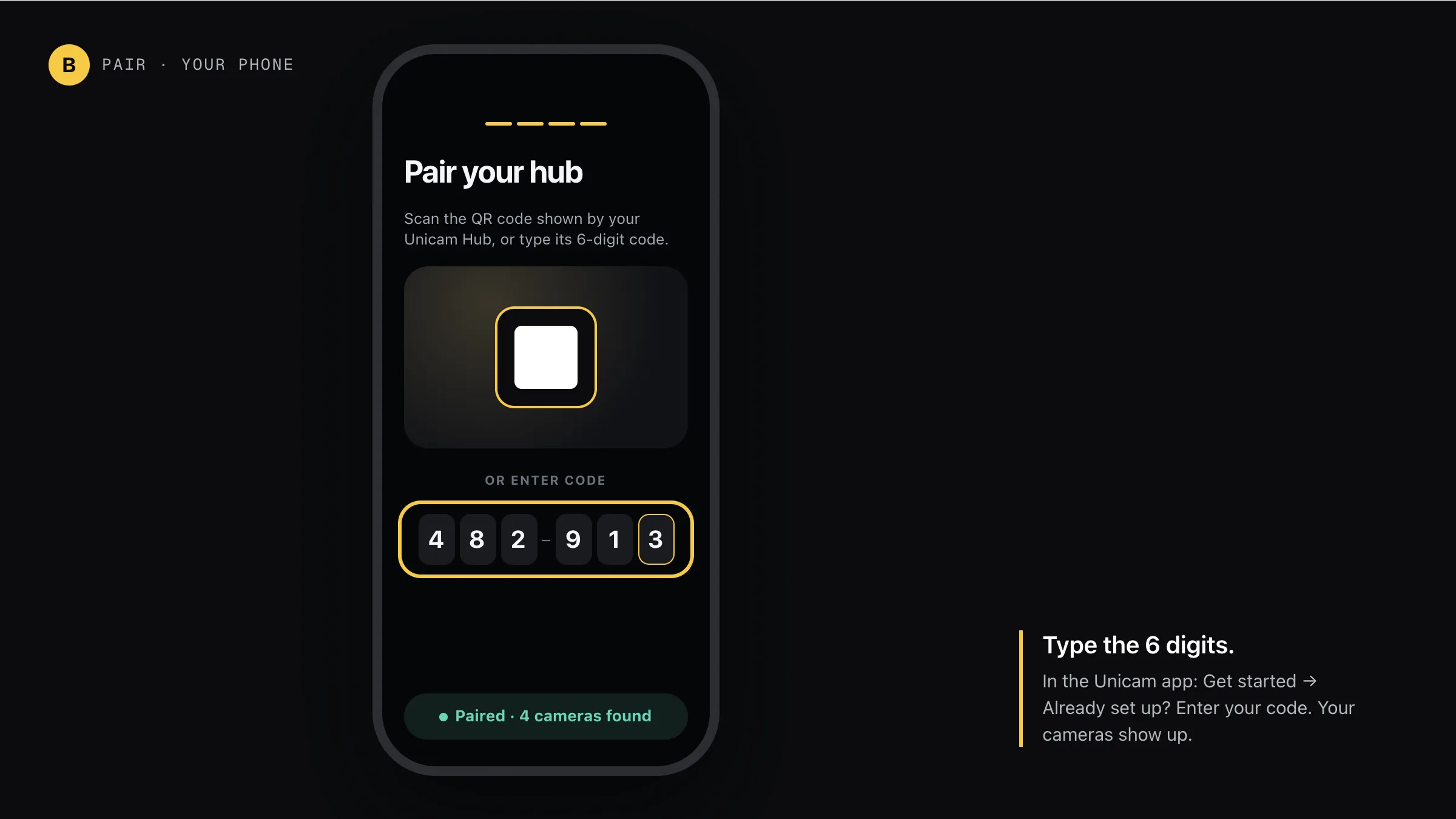
Step B: Type the 6 digits in the app
Open Glimpo on your phone: Get started → Already set up? Enter your code. Your hub finds the cameras on your Wi-Fi and they show up on your phone.
There’s no Run anyway button
Click More info first; the button appears after it. On a work PC, your company may block new apps.
I clicked Cancel on the firewall
Windows Security → Firewall & network protection → Allow an app through firewall → tick Glimpo for Private.
Recording stops at night
Recording pauses while the PC sleeps. Settings → System → Power: set sleep to Never when plugged in, or use a Raspberry Pi.
Other hubs
Glimpo Hub 0.2.1. Pictures show what you’ll see; your screen may look slightly different.