Install guide · 6 pictures · about 5 min
Install the hub on a Mac
Your Mac becomes the recorder. Four pictures, about five minutes.
You need
- A Mac with macOS 12 or later (Apple silicon or Intel)
- The Mac on the same Wi-Fi as your cameras
- Your phone with the Glimpo app
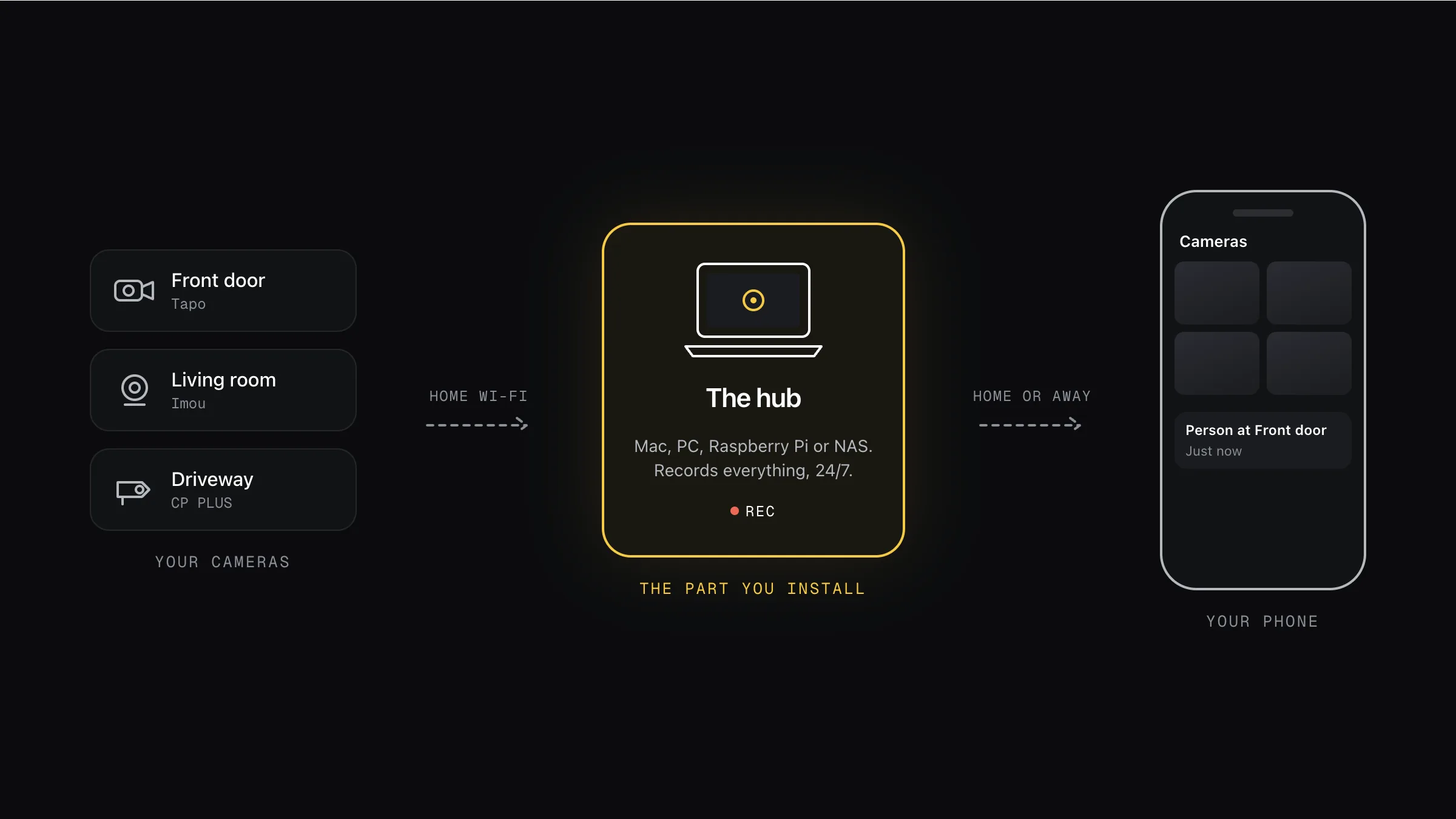
Your cameras → the hub you’re installing → your phone. Footage stays at home, or in your own cloud.
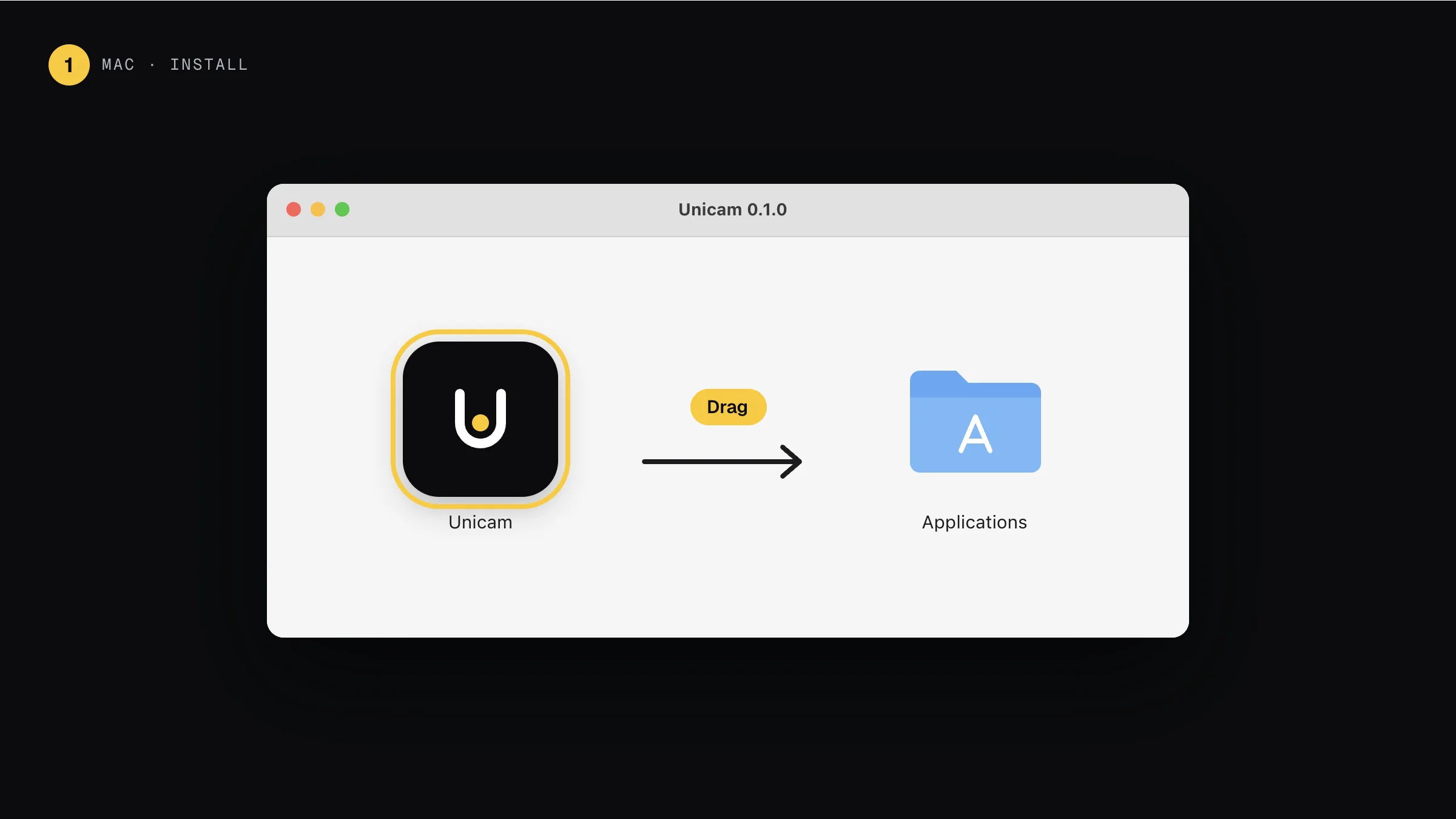
Step 1: Open the download, drag Glimpo to Applications
Double-click the file you downloaded (it’s in Downloads). A window opens. Drag the Glimpo icon onto the Applications folder.
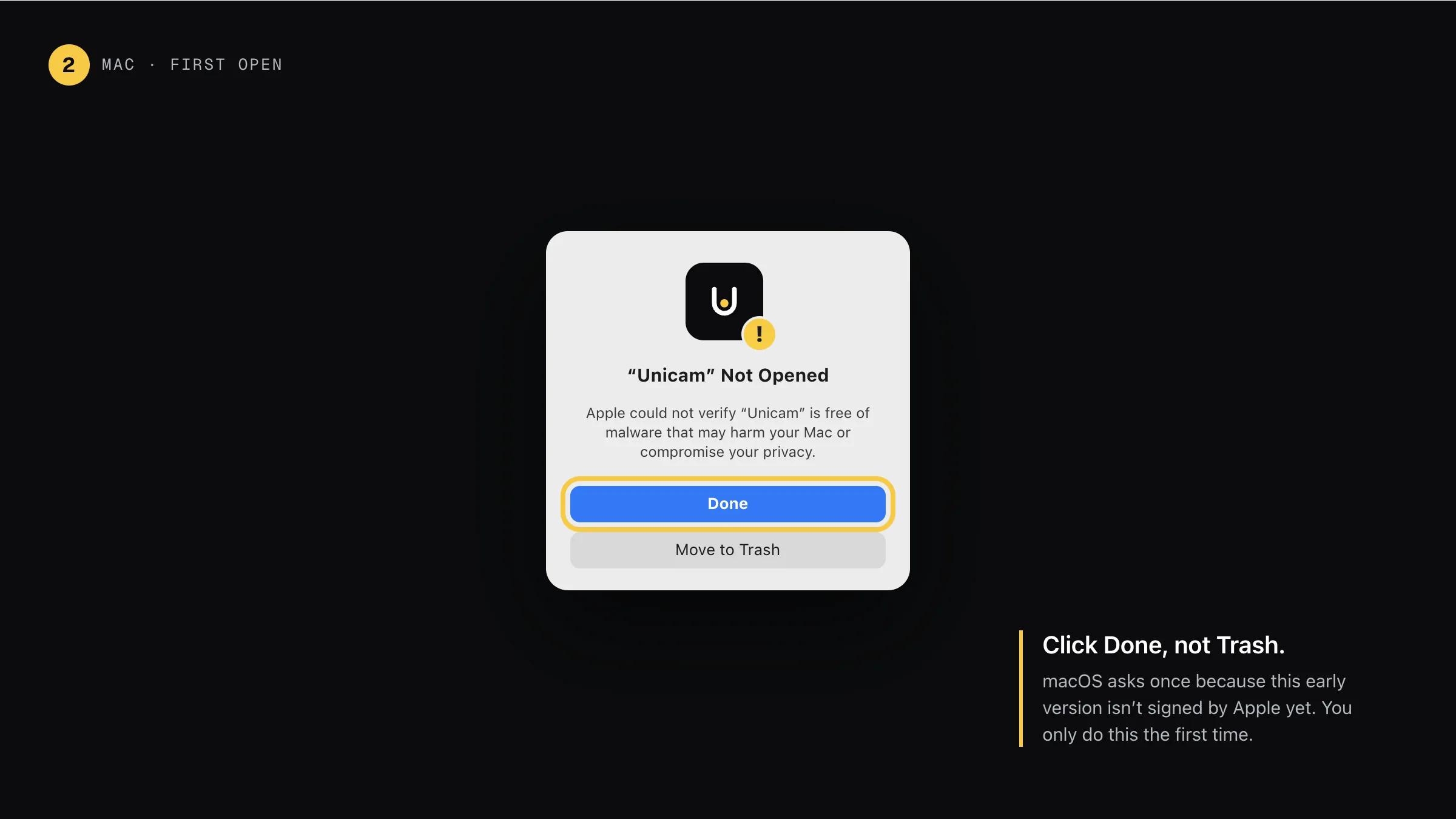
Step 2: First open: click Done
Open Glimpo from Applications. macOS says it can’t check the app, because this early version isn’t signed by Apple yet. Click Done, not Move to Trash.
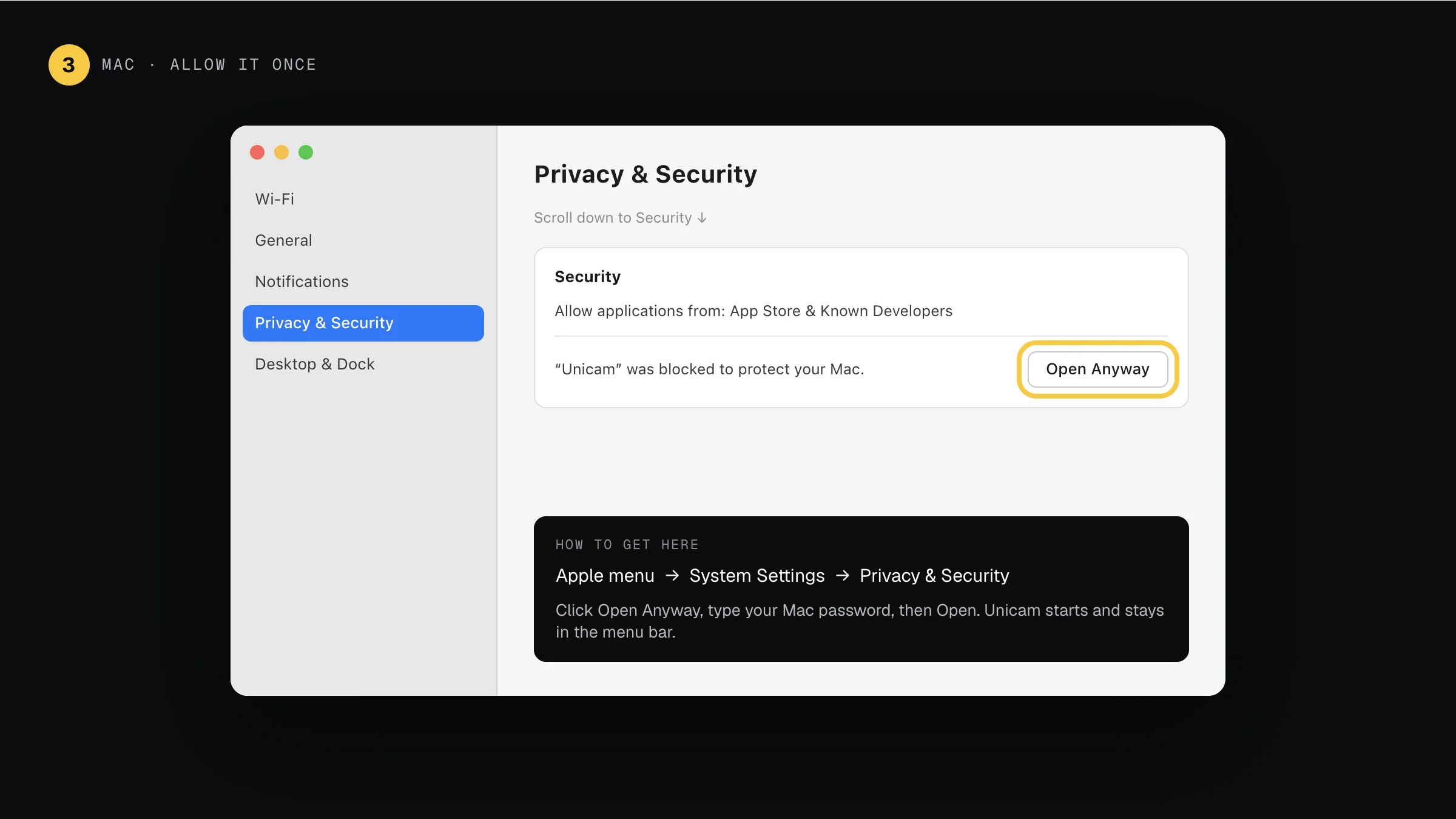
Step 3: Allow it once in System Settings
Apple menu → System Settings → Privacy & Security. Scroll to Security and click Open Anyway, type your Mac password, then Open. You only do this once. (On macOS 12 to 14 you can also right-click Glimpo → Open.)
Step 4: Find your code in the menu bar
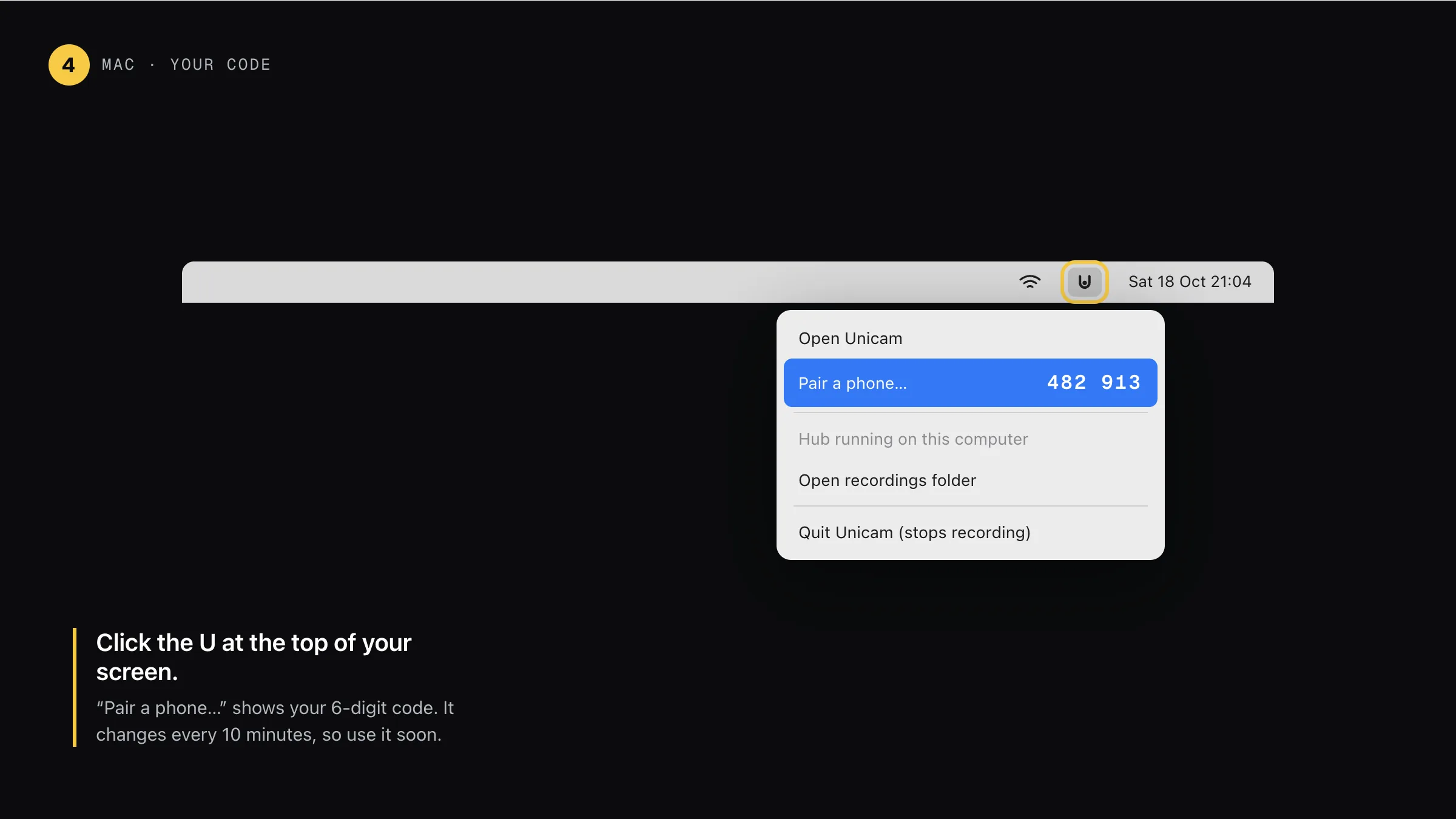
Glimpo lives at the top right of your screen. Click the U: “Pair a phone…” shows your 6-digit code. It keeps recording even when the window is closed.
Then pair your phone · same for every hub
Step A: Open the pairing page
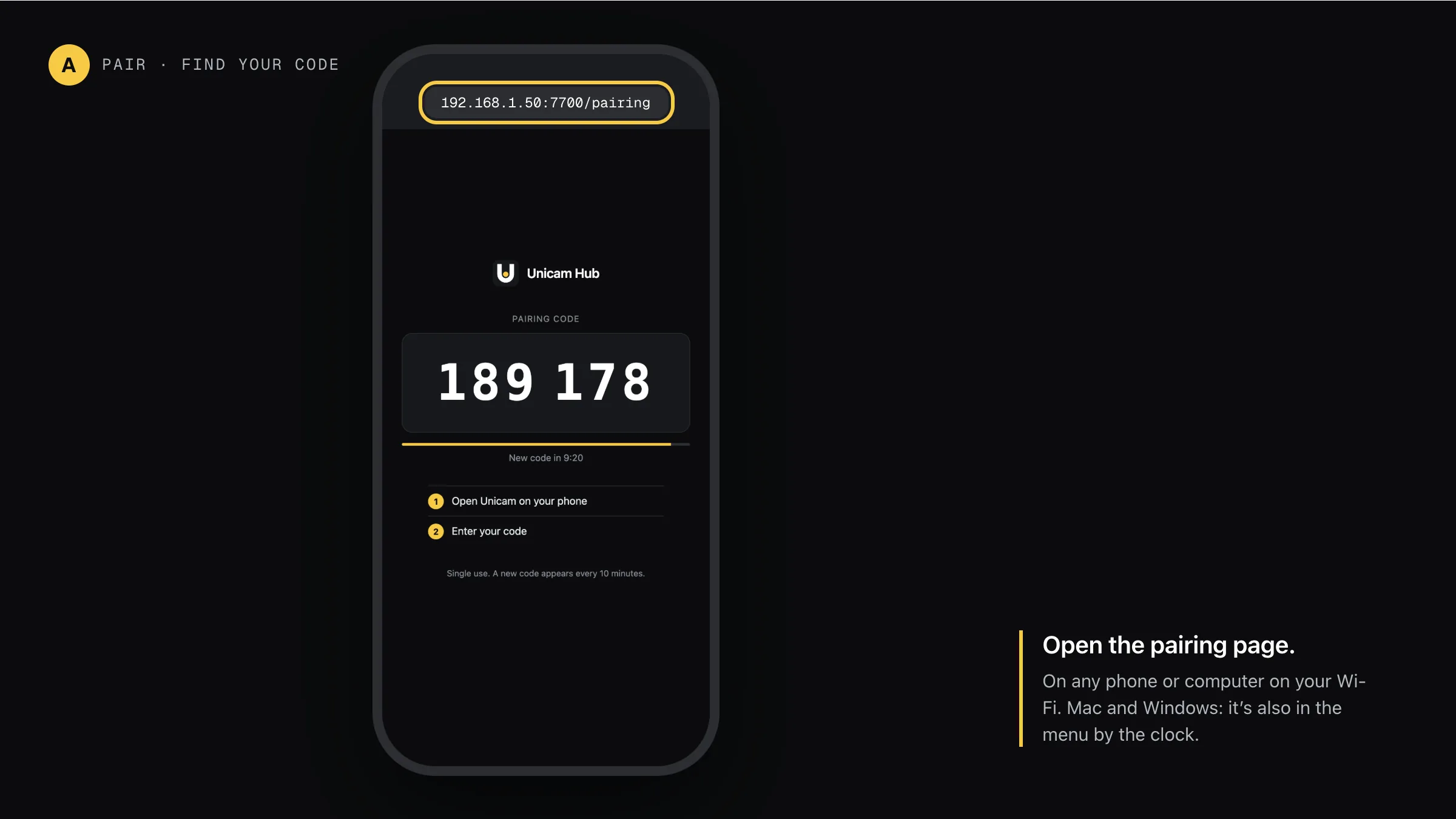
On any phone or computer on your Wi-Fi, open the hub’s address with /pairing on the end. The big number is your code. It changes every 10 minutes and works once.
Step B: Type the 6 digits in the app
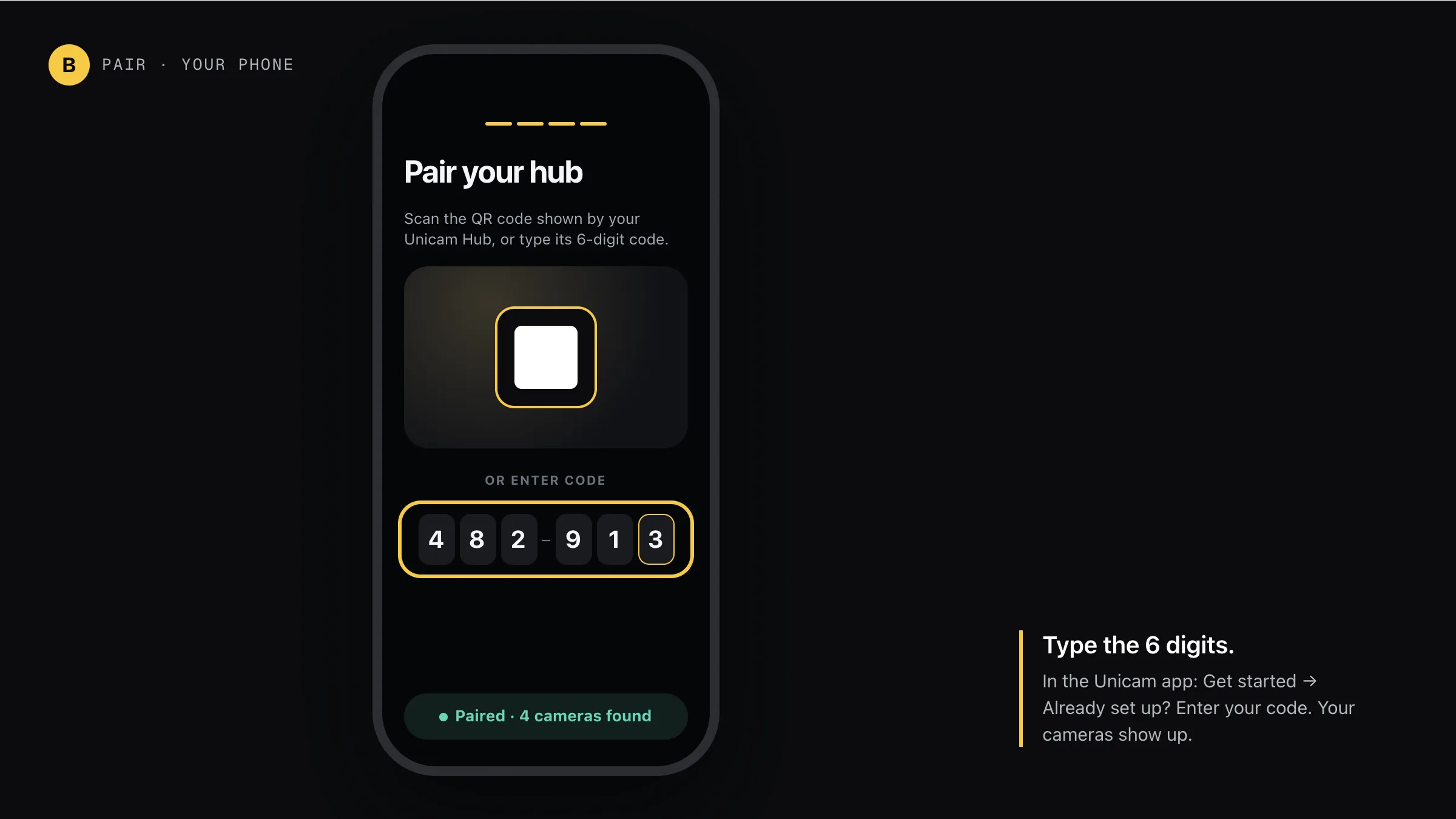
Open Glimpo on your phone: Get started → Already set up? Enter your code. Your hub finds the cameras on your Wi-Fi and they show up on your phone.
I don’t see Open Anyway
Try to open Glimpo once first, then look again in Privacy & Security. The button only appears for about an hour after macOS blocks it.
Recording stops at night
Recording pauses while the Mac sleeps. In System Settings → Energy, turn on “Prevent automatic sleeping when the display is off”, or use a Raspberry Pi.
My phone can’t find the hub
Make sure the phone is on the same Wi-Fi. If macOS asked to allow Glimpo to find devices on your local network, choose Allow.
Other hubs
Glimpo Hub 0.2.1. Pictures show what you’ll see; your screen may look slightly different.