Install guide · 3 pictures · about 10 min
Install the hub on a NAS or with Docker
Synology, QNAP, Unraid, TrueNAS, a mini-PC or a server you rent. One line to paste.
You need
- Docker with Compose (Container Manager on Synology, Container Station on QNAP)
- A 64-bit Intel/AMD or ARM machine on the same network as your cameras
- SSH turned on (Synology: Control Panel → Terminal & SNMP → Enable SSH)
$ curl -fsSL https://unicam.si/docker.sh | sh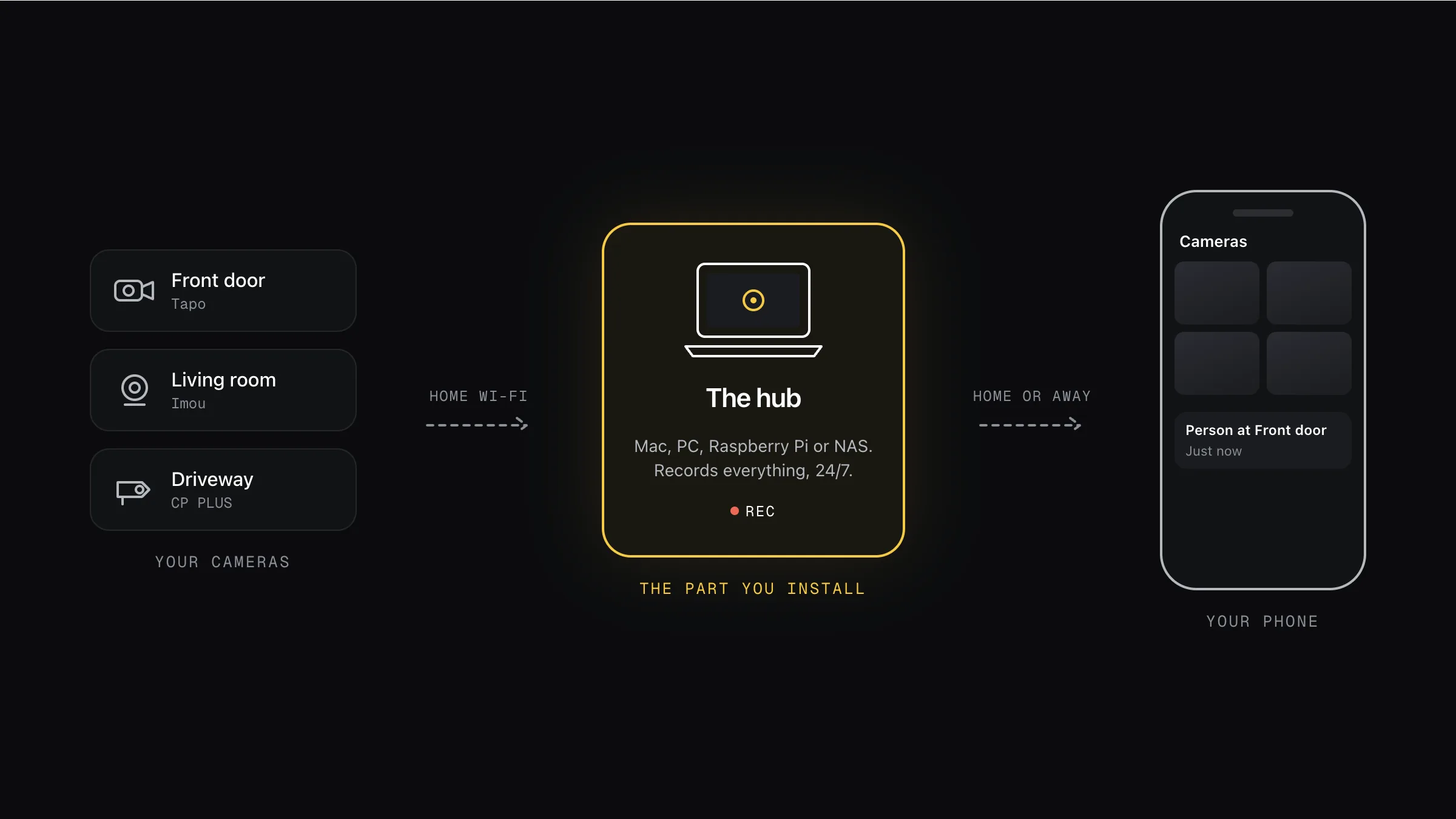
Your cameras → the hub you’re installing → your phone. Footage stays at home, or in your own cloud.
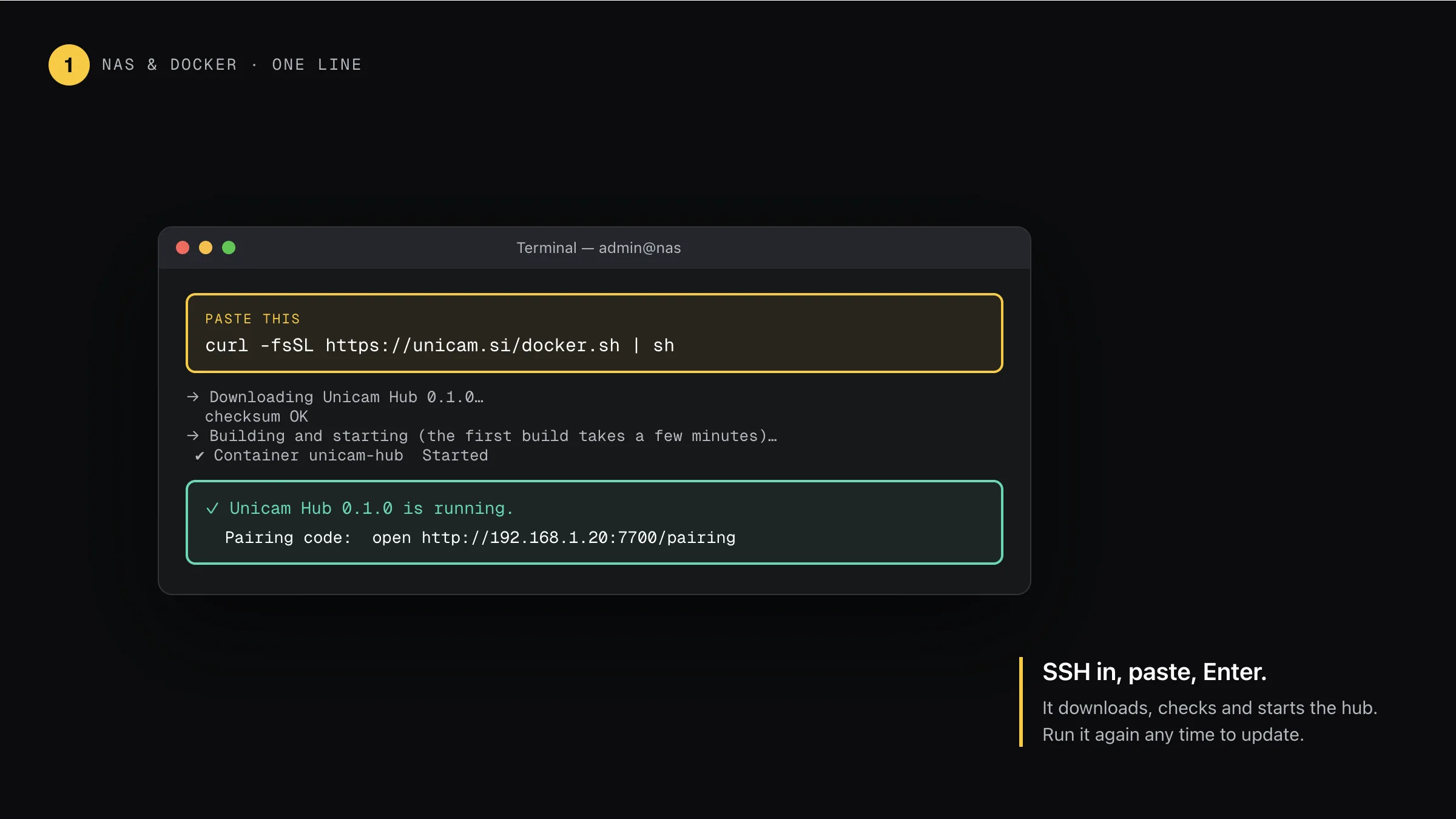
Step 1: SSH in, paste one line
Connect to your NAS (ssh admin@your-nas), go to the folder where you keep apps, paste the line below and press Enter. On Synology you may need sudo in front of sh. It downloads the hub, checks it, builds it and starts it. The first build takes a few minutes.
$ curl -fsSL https://unicam.si/docker.sh | shThen pair your phone · same for every hub
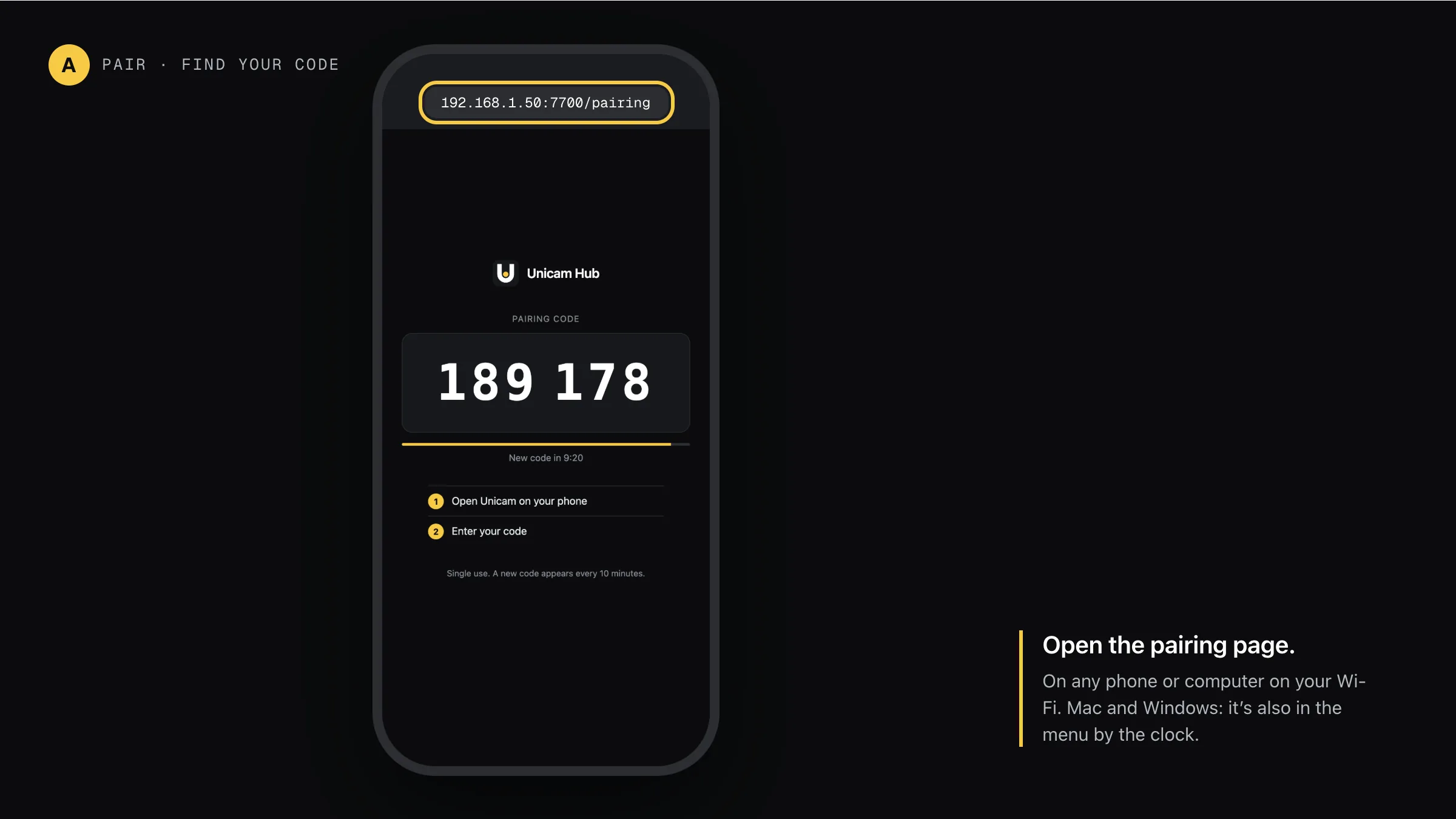
Step A: Open the pairing page
On any phone or computer on your Wi-Fi, open the hub’s address with /pairing on the end. The big number is your code. It changes every 10 minutes and works once.
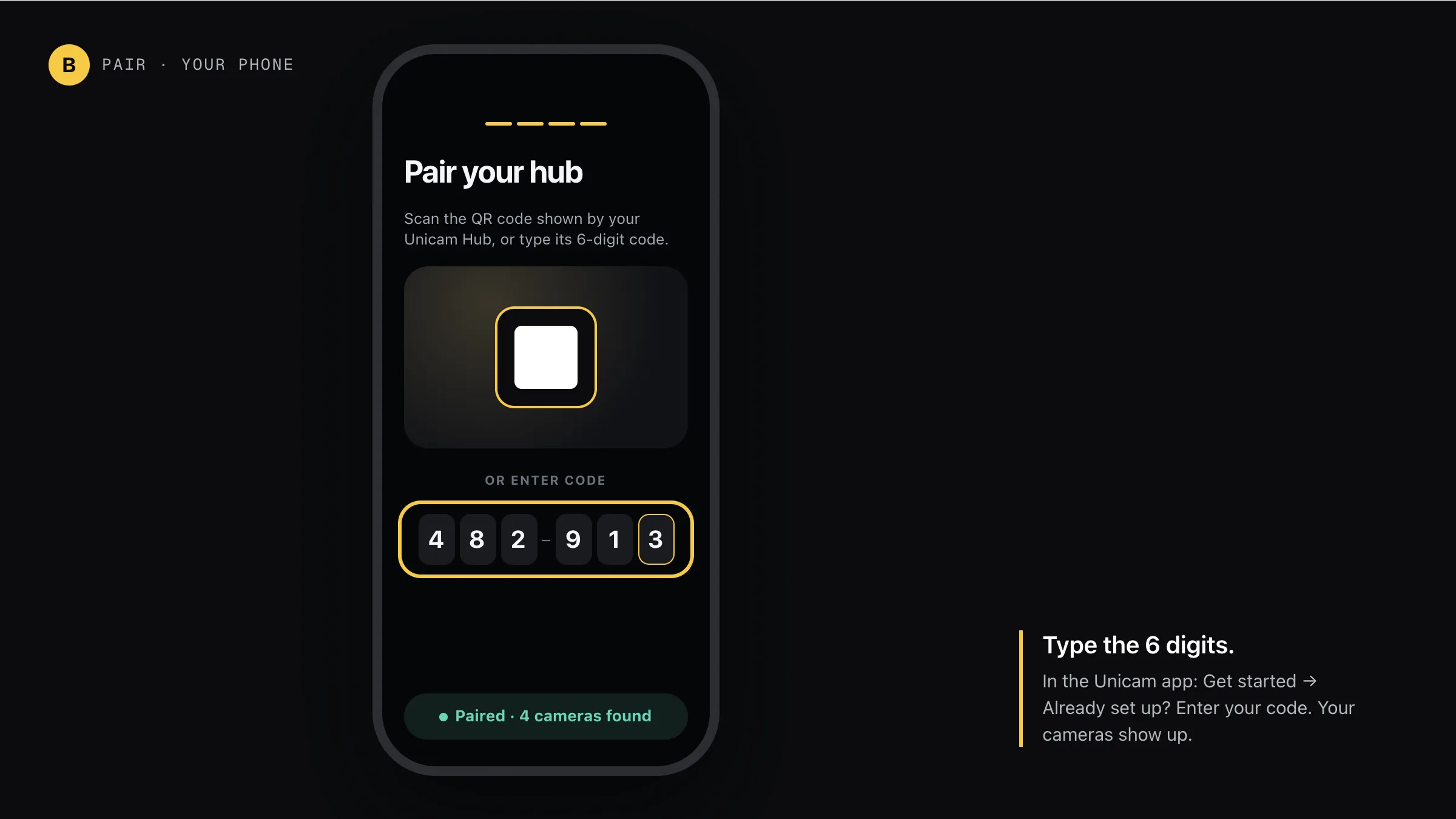
Step B: Type the 6 digits in the app
Open Glimpo on your phone: Get started → Already set up? Enter your code. Your hub finds the cameras on your Wi-Fi and they show up on your phone.
permission denied … docker.sock
Your user can’t use Docker. Run it as: curl -fsSL https://unicam.si/docker.sh | sudo sh
Record to a NAS share
Edit unicam-hub/docker-compose.yml: remove the # in front of the /recordings line and point it at your share, then run docker compose up -d again. Pick /recordings in the app’s Storage tab.
Running it on a VPS
Cameras must push their video to it over RTMP. See the own-server guide: /help/hub-on-your-own-server
Update it
Run the same line again from the same folder. Your recordings and settings in unicam-hub/unicam-data stay.
Other hubs
Glimpo Hub 0.2.1. Pictures show what you’ll see; your screen may look slightly different.