Install guide · 6 pictures · about 15 min
Install the hub on a Raspberry Pi
A silent recorder that’s always on. Four pictures and one line to paste.
You need
- A Raspberry Pi 4 or 5 (a Pi 3 is fine for 1 or 2 cameras)
- A 32 GB or bigger microSD card, and its power supply
- Raspberry Pi Imager on your computer (free, from raspberrypi.com)
- A USB disk if you want more than a few days of recordings
$ curl -fsSL https://unicam.si/install.sh | sudo bash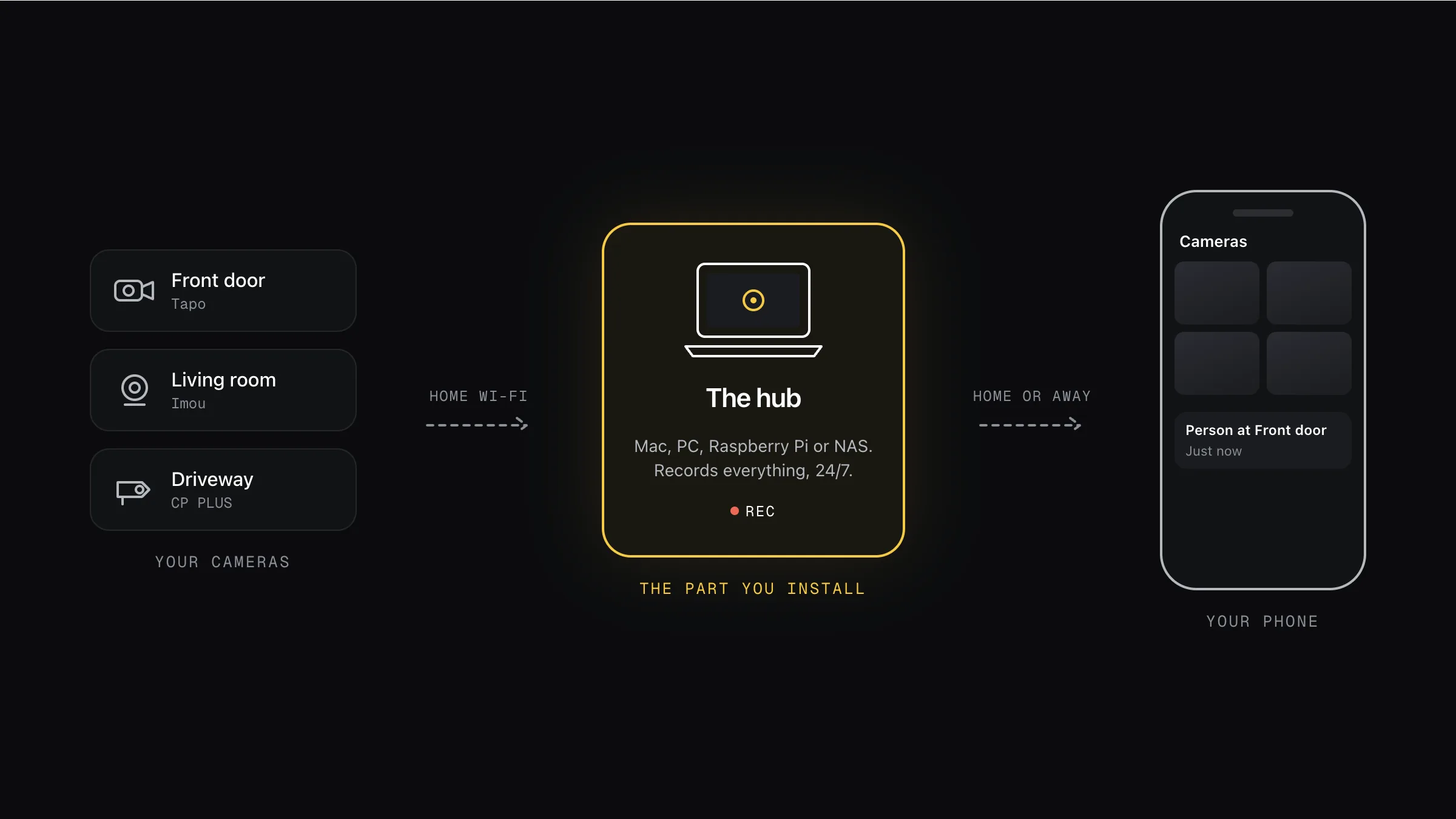
Your cameras → the hub you’re installing → your phone. Footage stays at home, or in your own cloud.
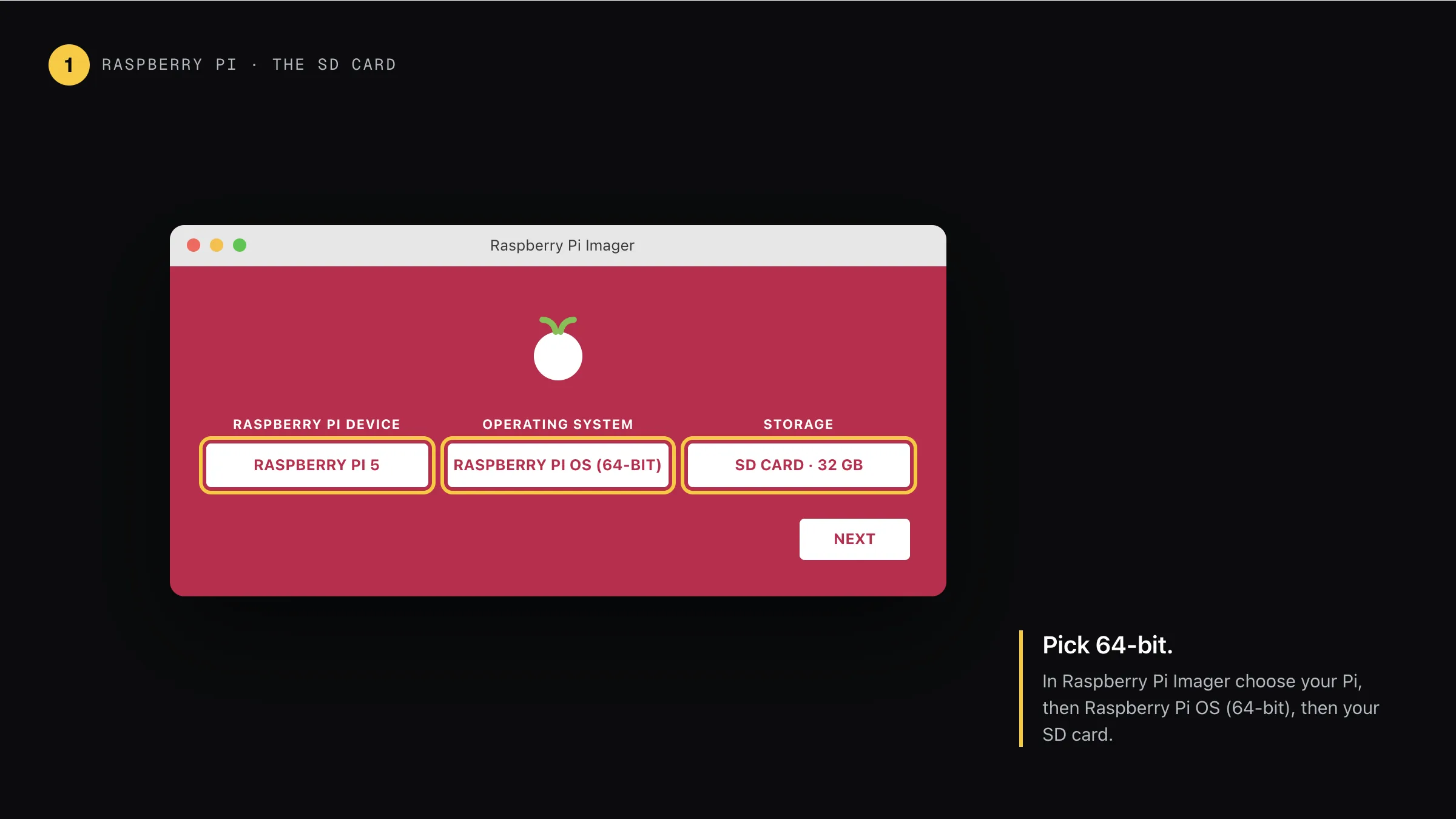
Step 1: Make the SD card: pick 64-bit
In Raspberry Pi Imager choose your Pi, then Raspberry Pi OS (64-bit), then your SD card, then Next. It has to be 64-bit.
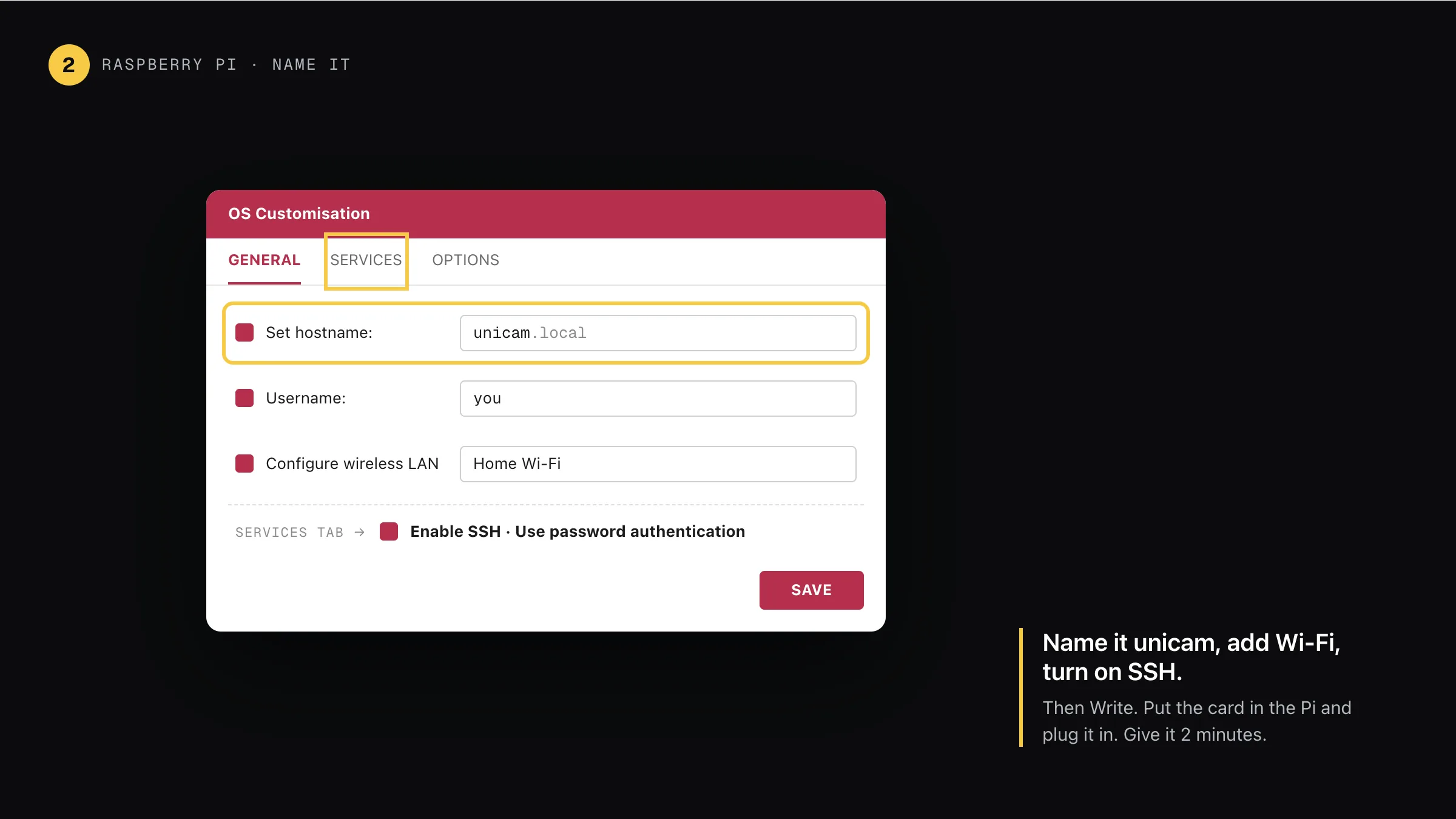
Step 2: Name it glimpo, add Wi-Fi, turn on SSH
When Imager asks to edit settings, say yes. Hostname: glimpo. Pick a username and password, add your Wi-Fi, and on the Services tab tick Enable SSH. Save, then Write. Put the card in the Pi and plug it in. Give it 2 minutes.
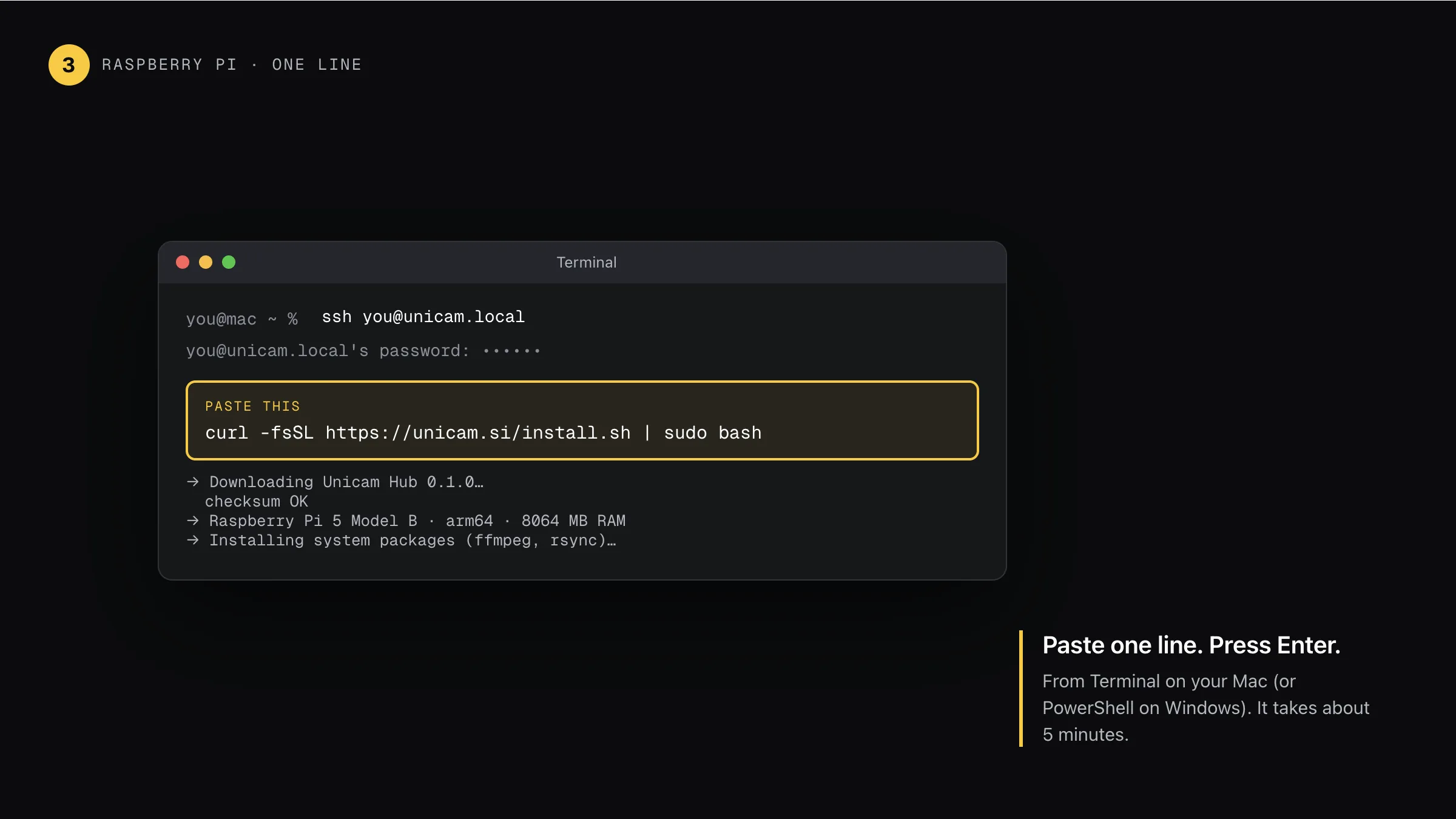
Step 3: Paste one line
On your computer open Terminal (Mac) or PowerShell (Windows). Type ssh you@glimpo.local (with your username), enter the password, then paste the line below and press Enter. It takes about 5 minutes.
$ curl -fsSL https://unicam.si/install.sh | sudo bash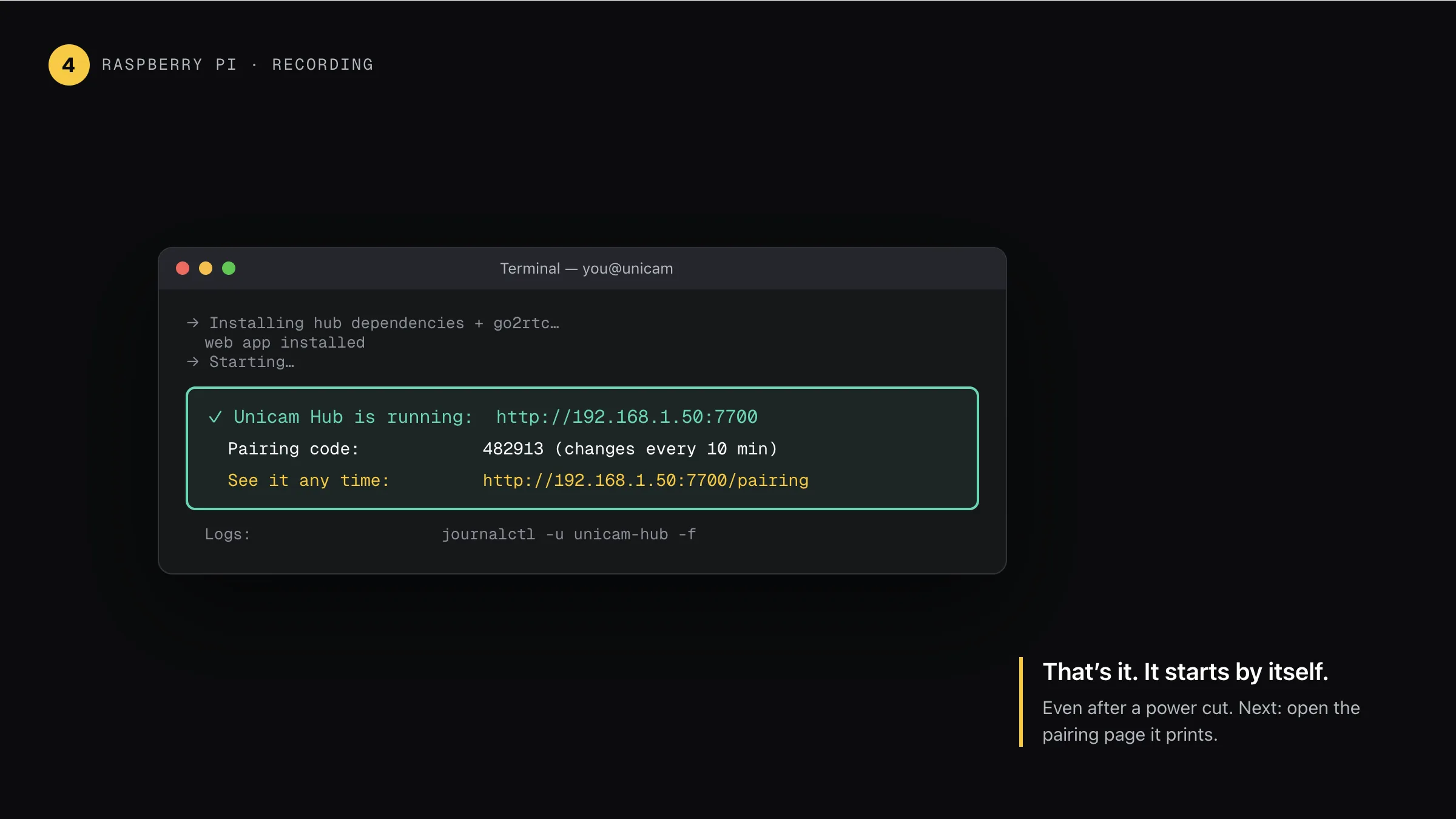
Step 4: Done. It starts by itself
The installer prints the hub address and your pairing code. The hub starts every time the Pi powers on, even after a power cut. Run the same line again any time to update.
Then pair your phone · same for every hub
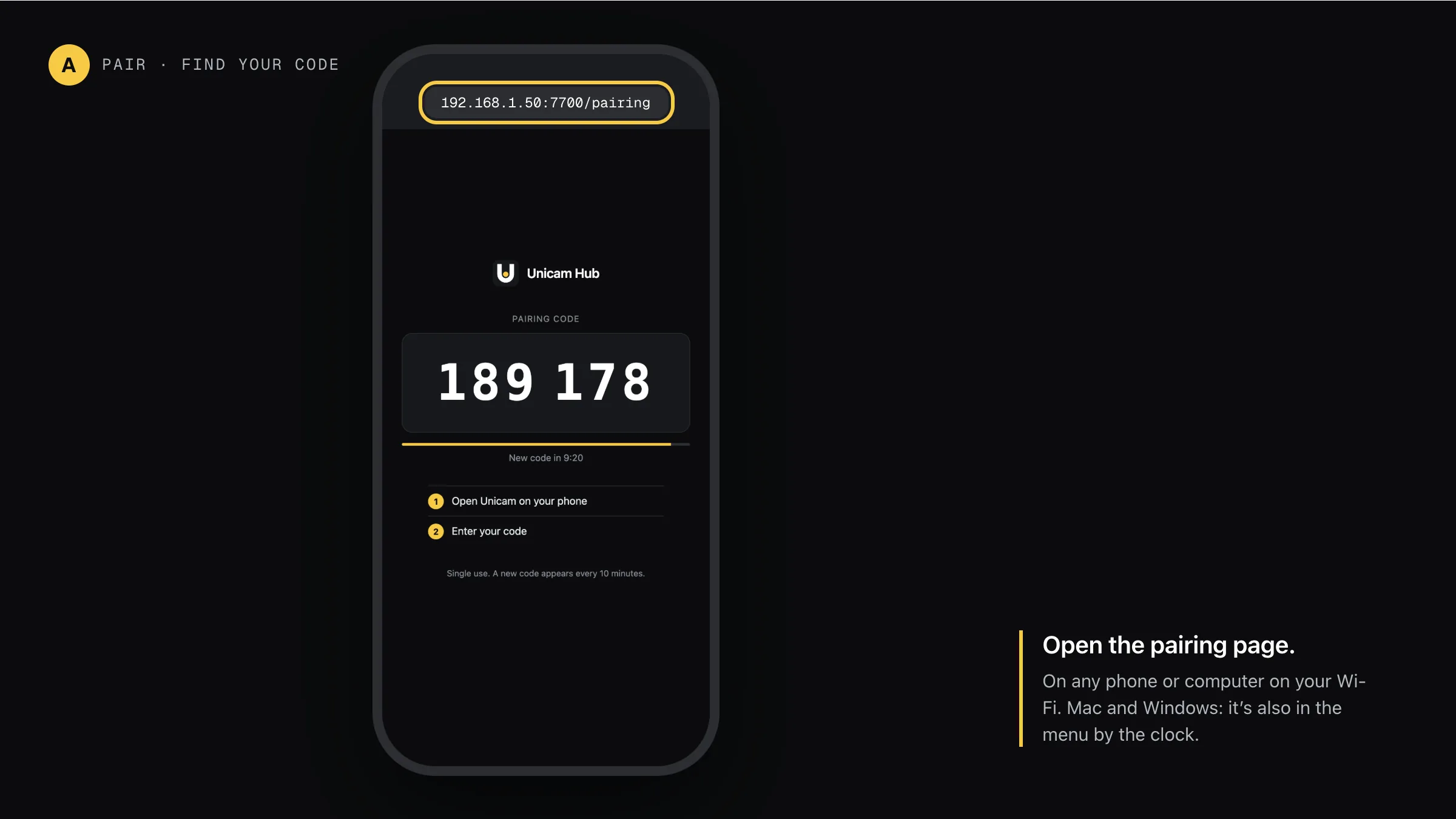
Step A: Open the pairing page
On any phone or computer on your Wi-Fi, open the hub’s address with /pairing on the end. The big number is your code. It changes every 10 minutes and works once.
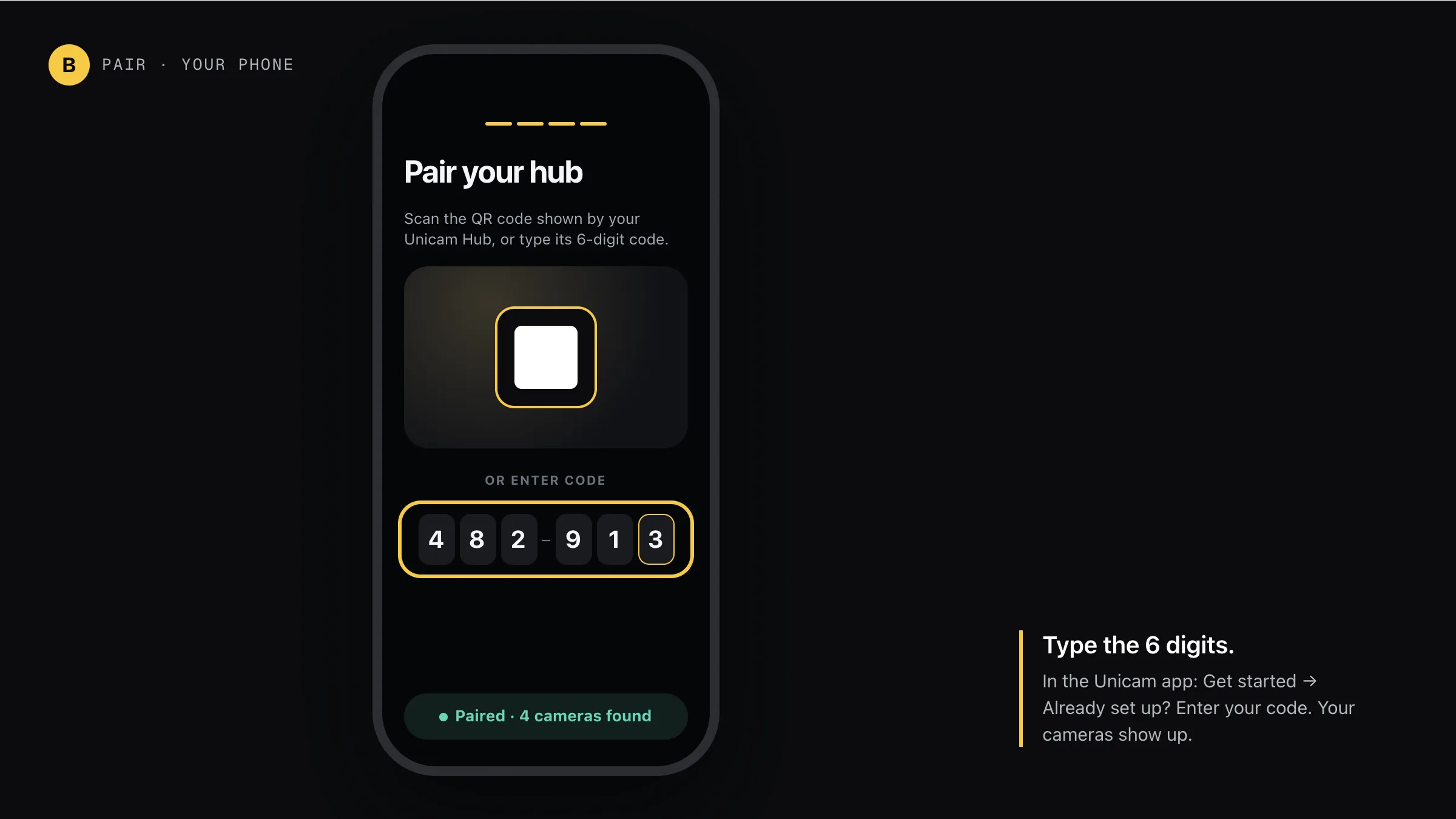
Step B: Type the 6 digits in the app
Open Glimpo on your phone: Get started → Already set up? Enter your code. Your hub finds the cameras on your Wi-Fi and they show up on your phone.
“32-bit Raspberry Pi OS” error
Write the card again with Raspberry Pi OS (64-bit). Glimpo needs 64-bit.
ssh: Could not resolve glimpo.local
Wait another minute, or use the Pi’s address from your router’s app instead, e.g. ssh you@192.168.1.50.
Where does the footage go?
To the SD card by default. Plug in a USB disk and pick it as a storage folder in the app’s Storage tab, or add a NAS, WebDAV or an S3 bucket like Backblaze B2.
Other hubs
Glimpo Hub 0.2.1. Pictures show what you’ll see; your screen may look slightly different.